Add LLM to VSCode
We will use the extension Continue to add LLM to VSCode.
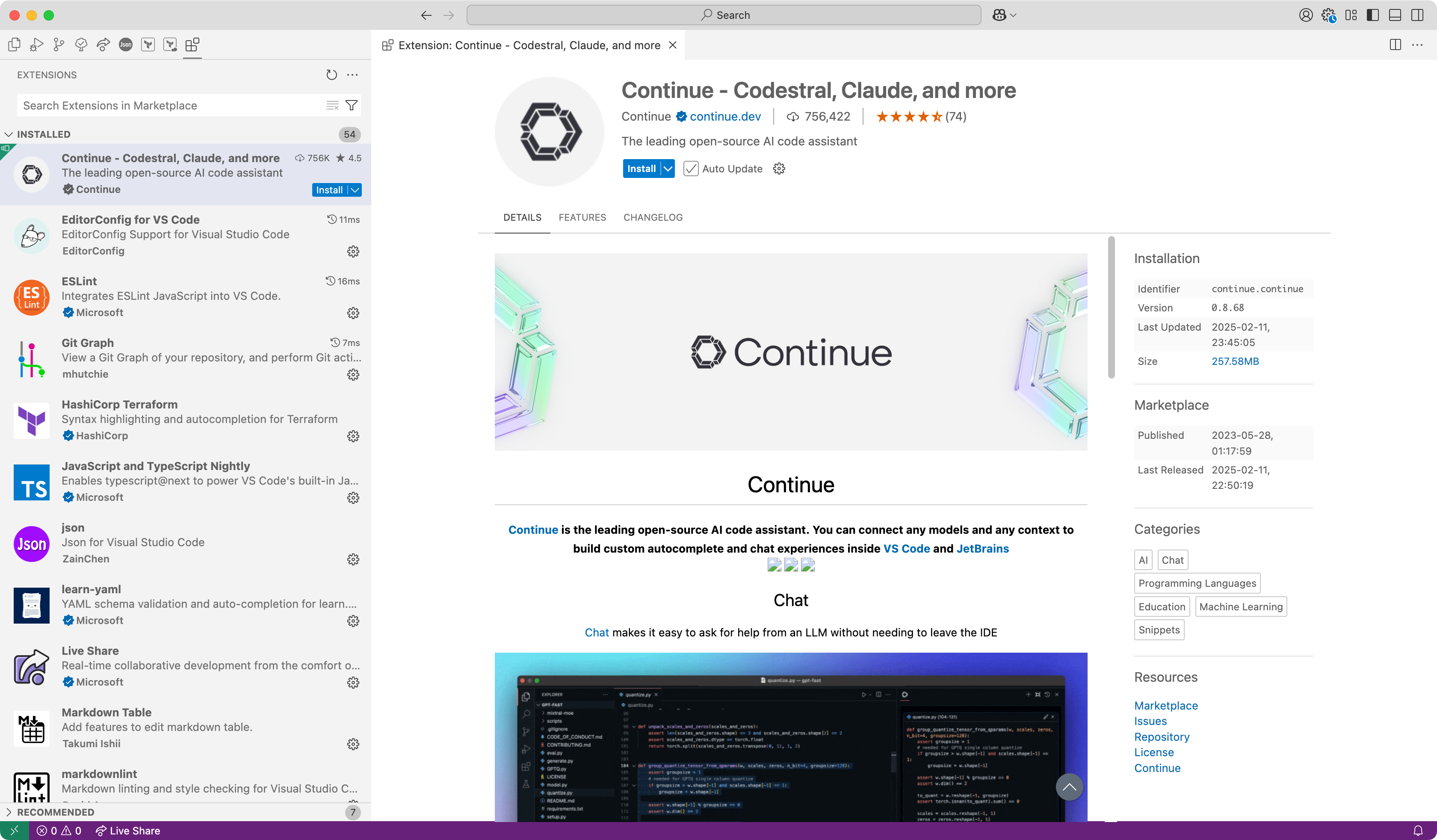
Install extension from marketplace
Install extension for VSCode or JetBrains IDEs from the marketplace. For example, we will install for VSCode.
After installation, you need install server for use models. For example, we will use these:
подсказка
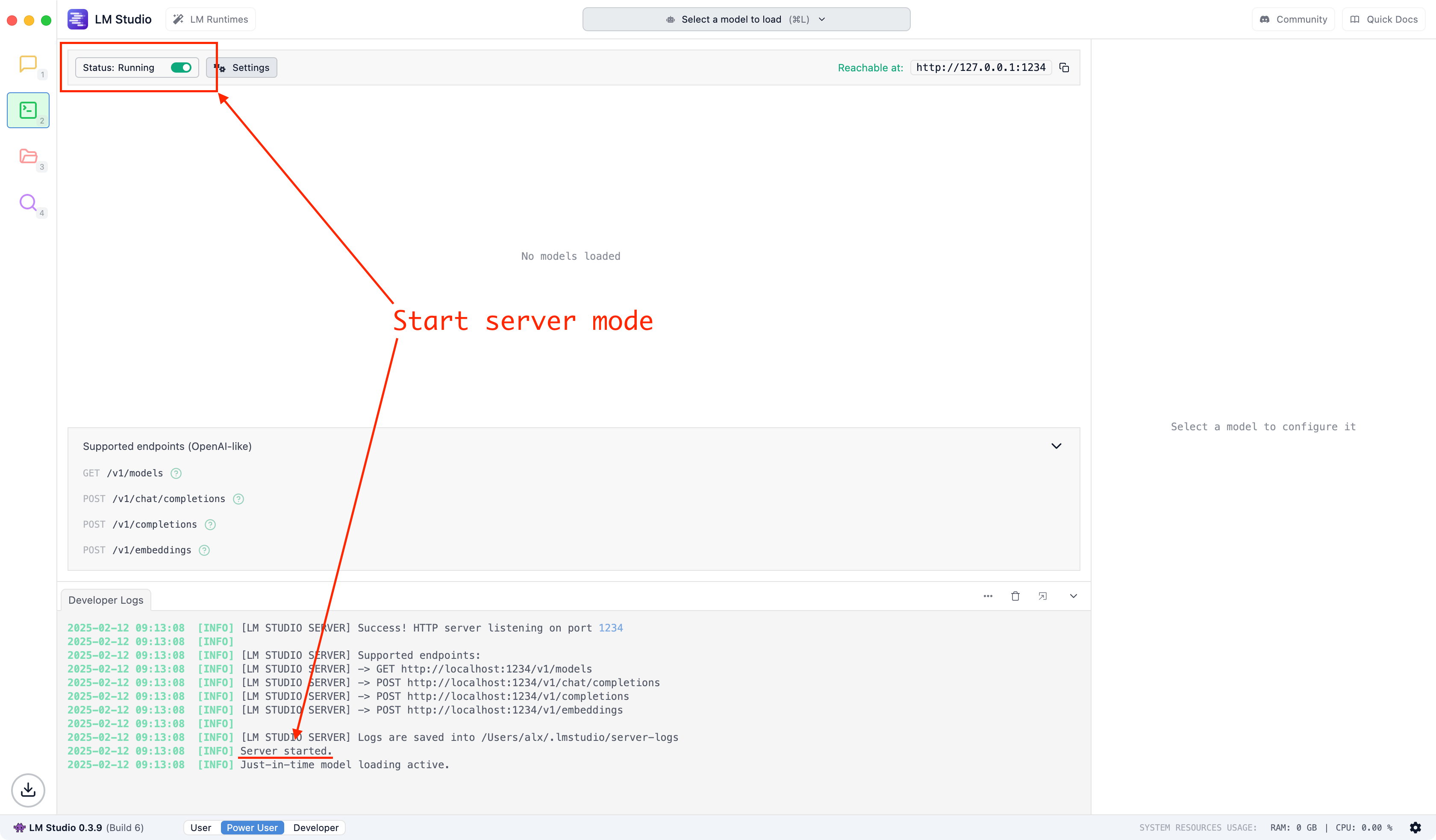
If you use LM Studio, don't forget to enable server mode:
Simple way to use LLM in VSCode
After install Ollama the simple way to use it is download models via plugin:
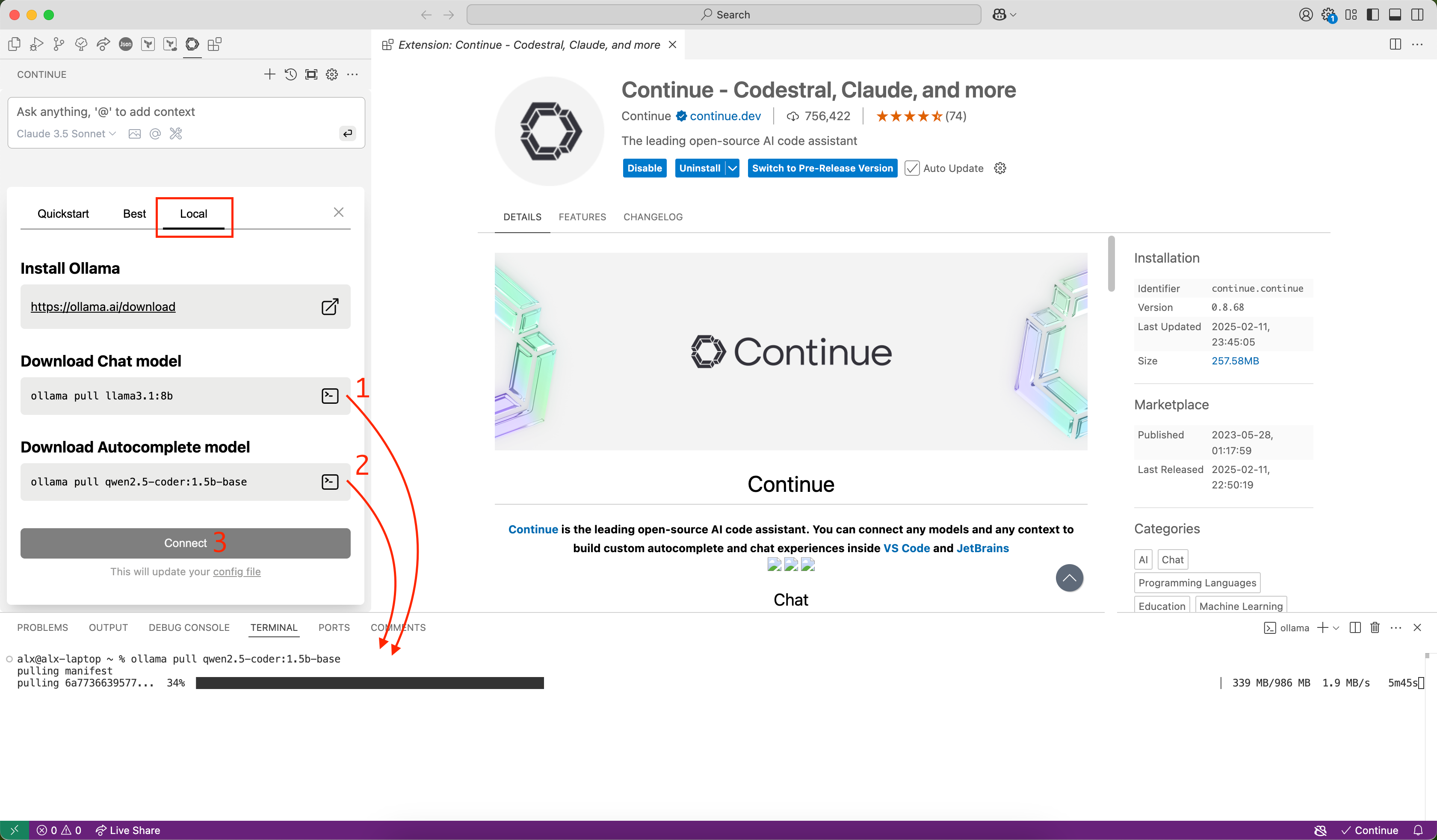
Click Connect:
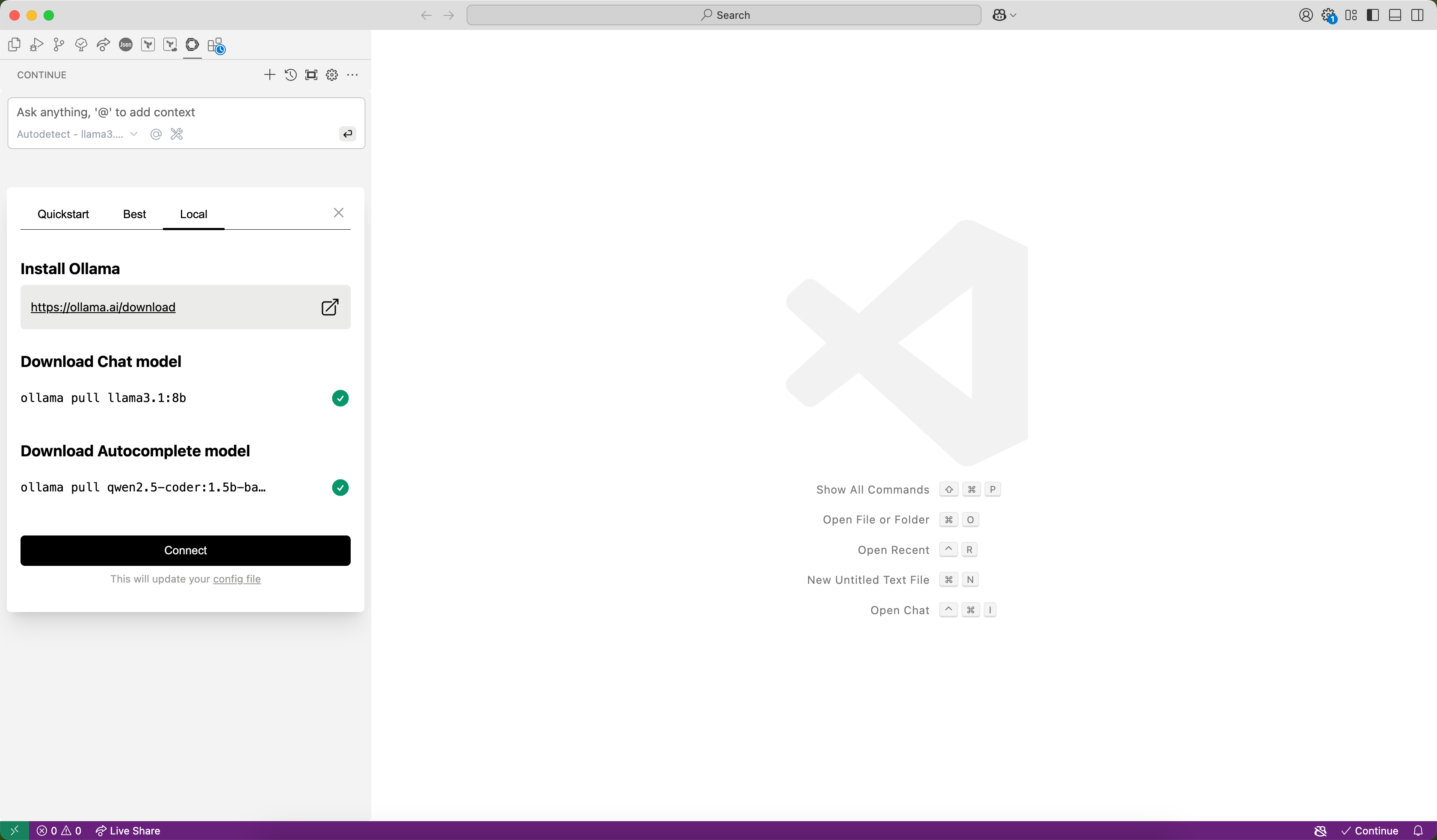
Enjoy!
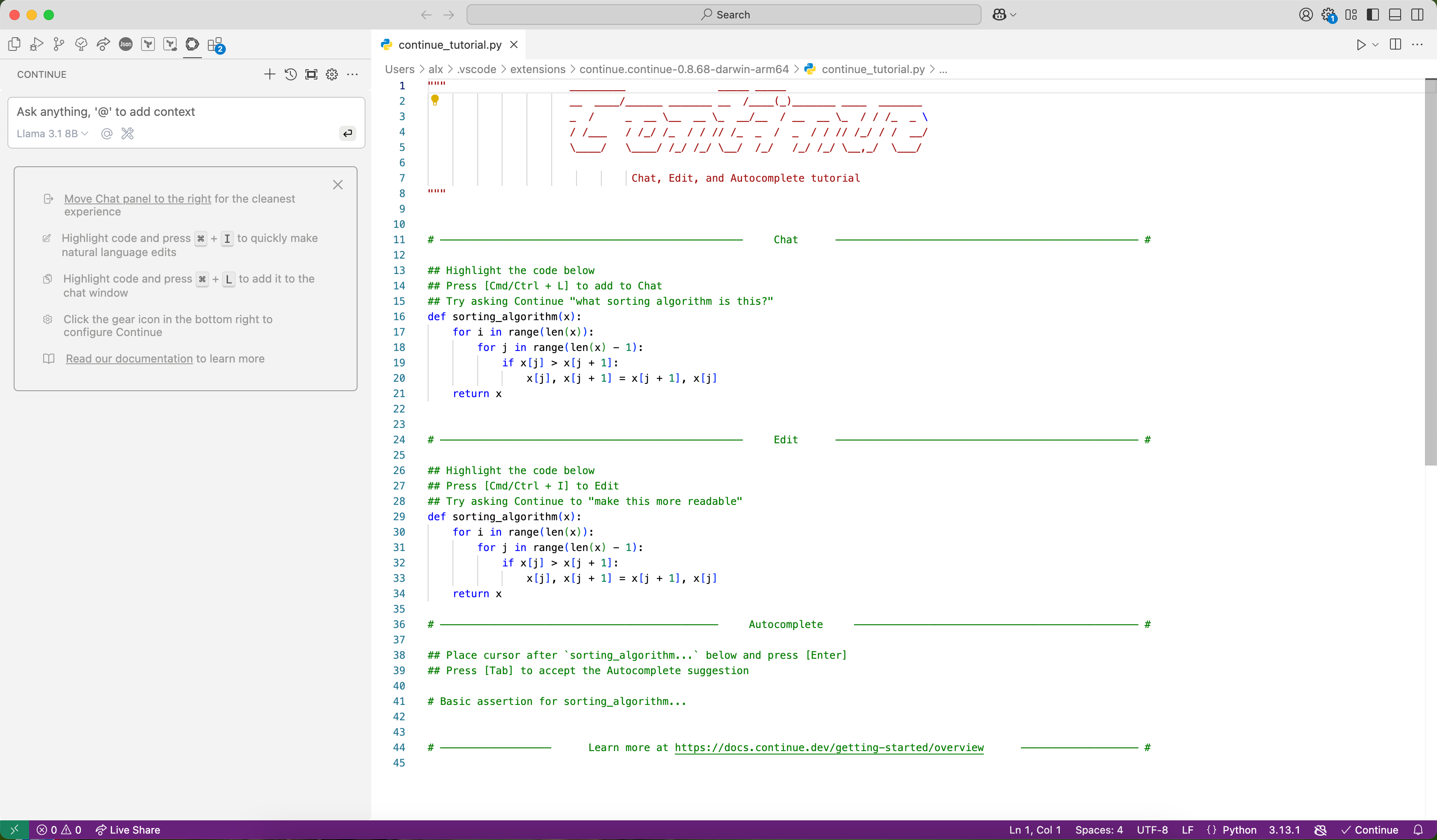
After that, you can start using LLM in VSCode. That's all!
Add another model
Open config file:
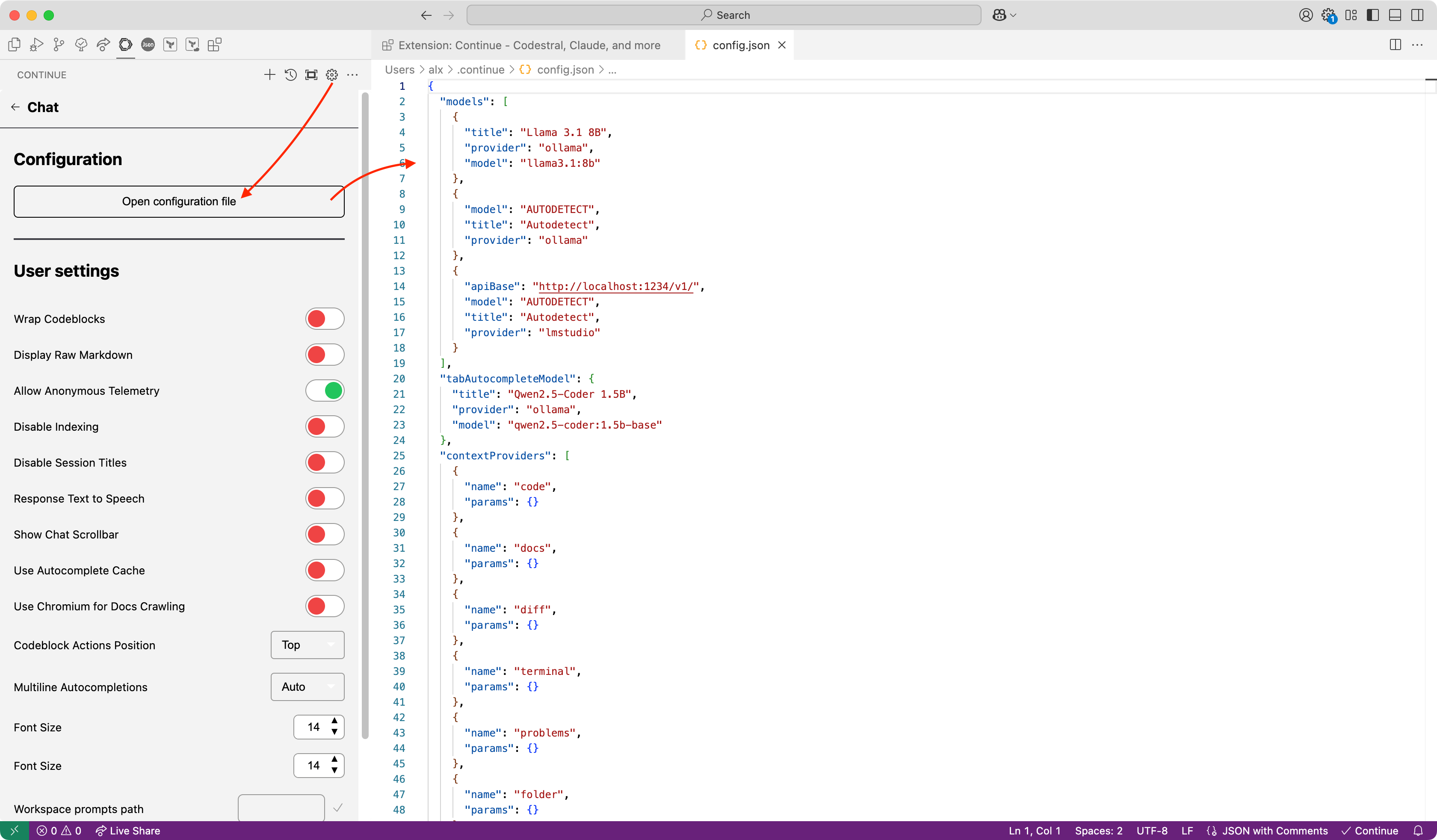
Added models for Ollama shown here:
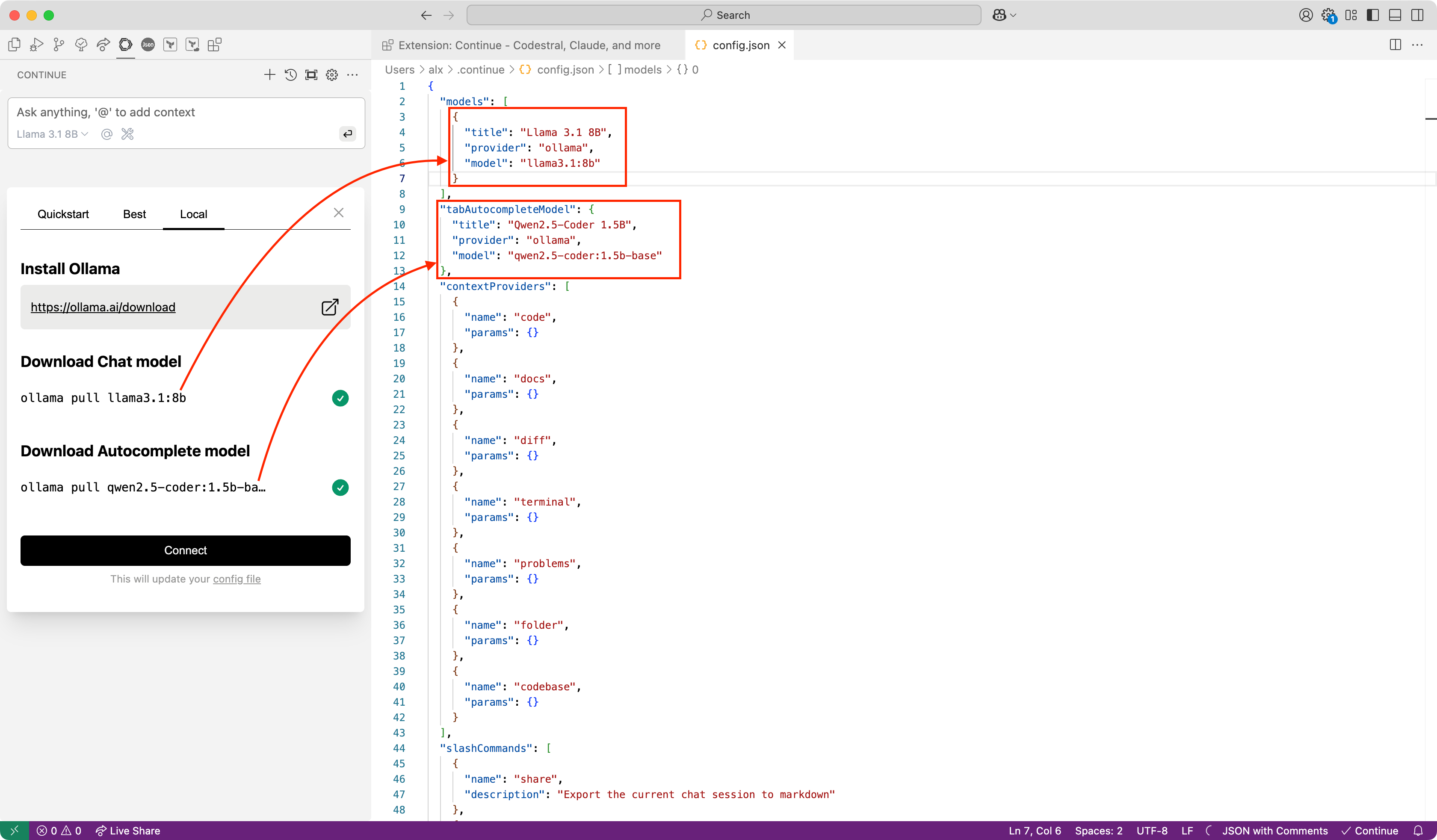
For chat you can add another model:
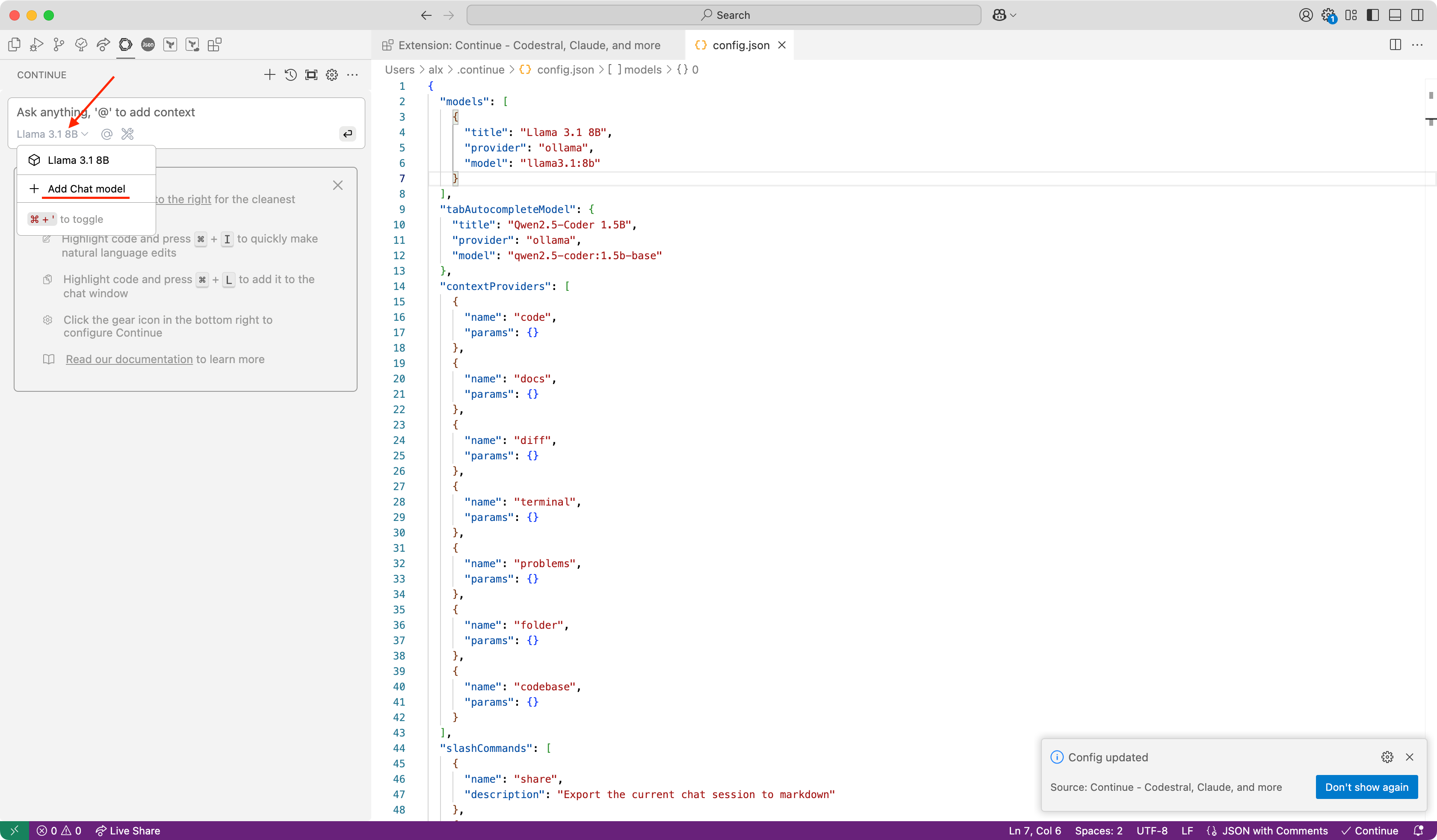
Use installed server:
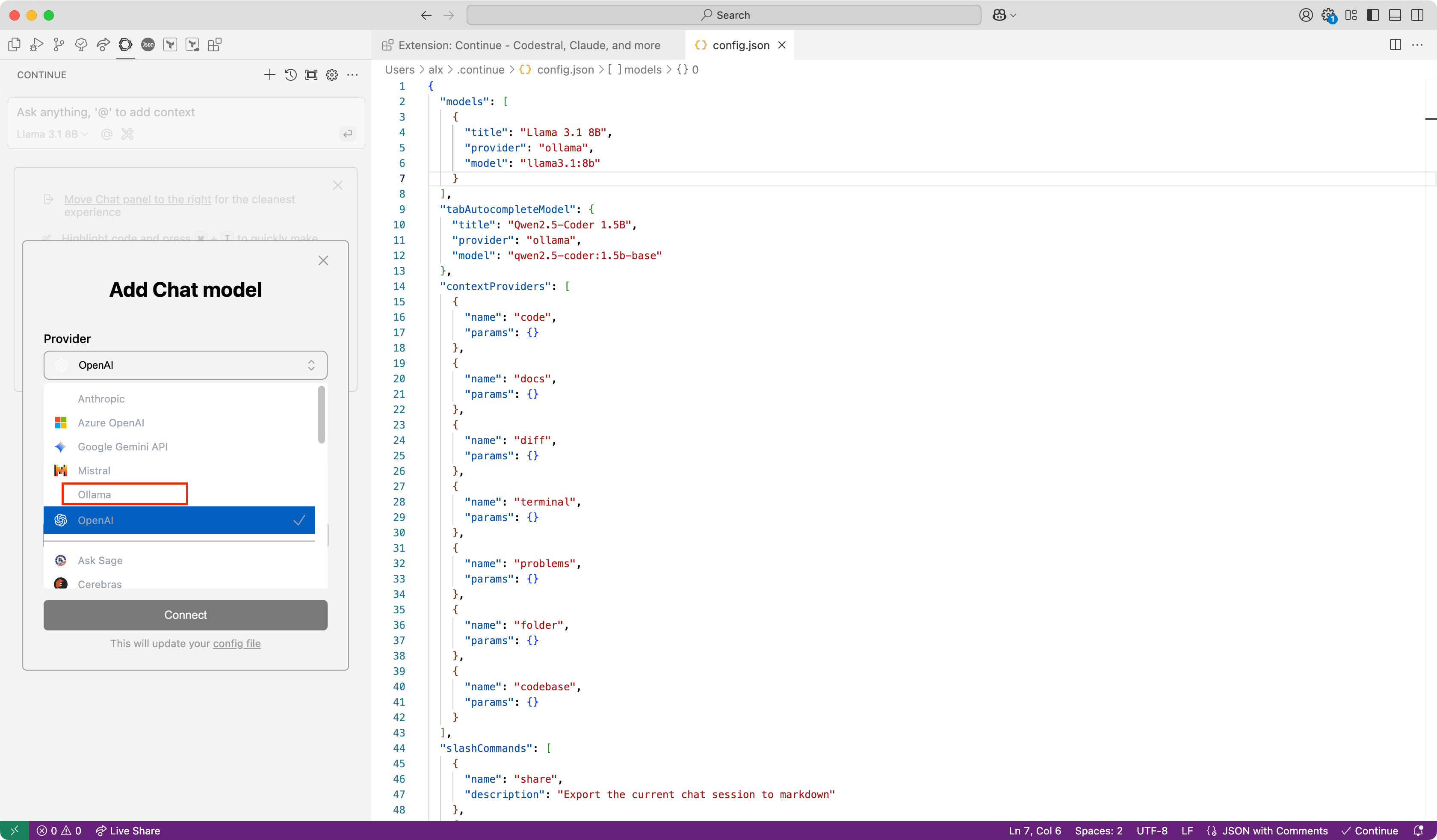
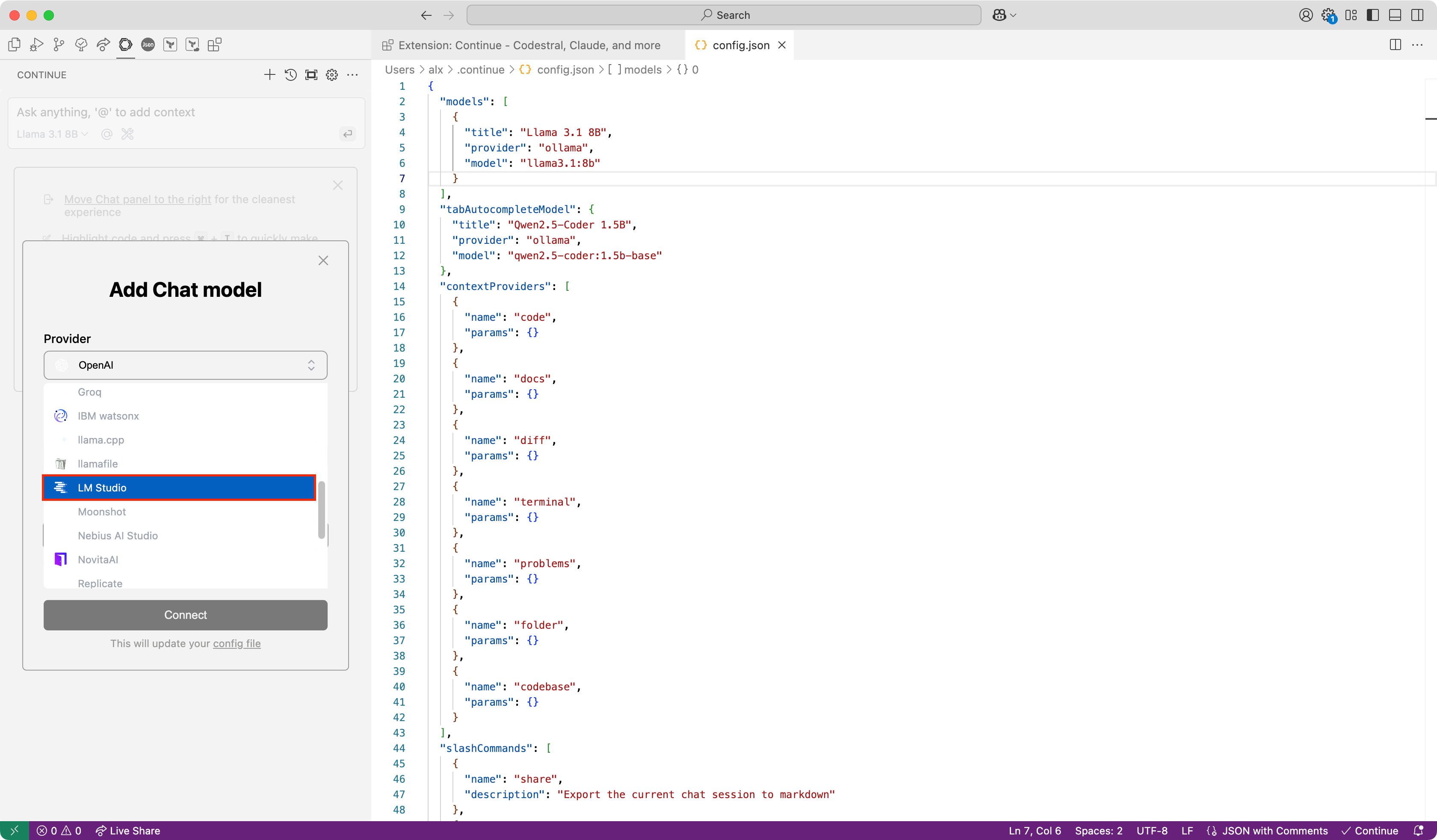
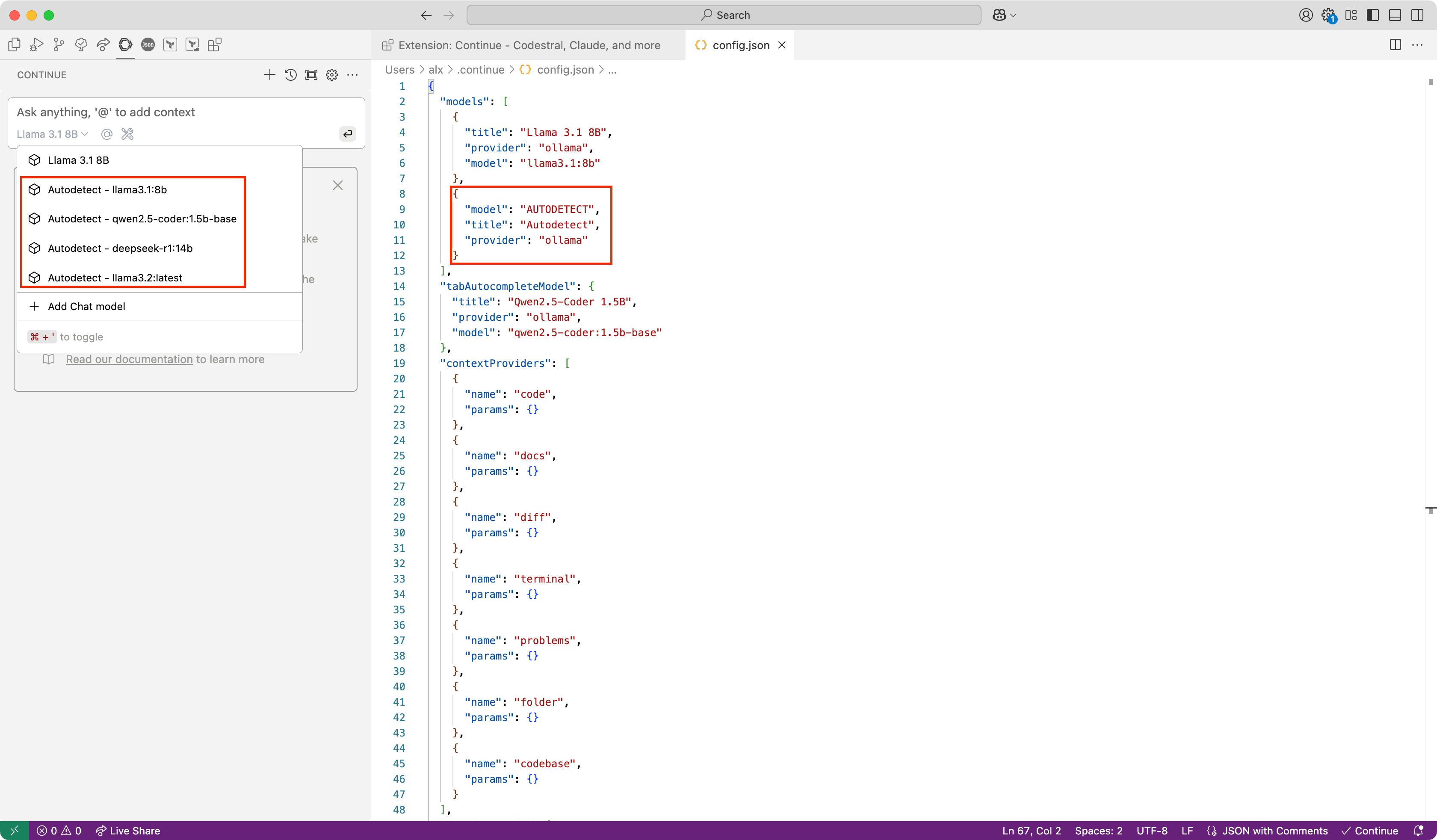
You can choose direct model or use autodetect option:
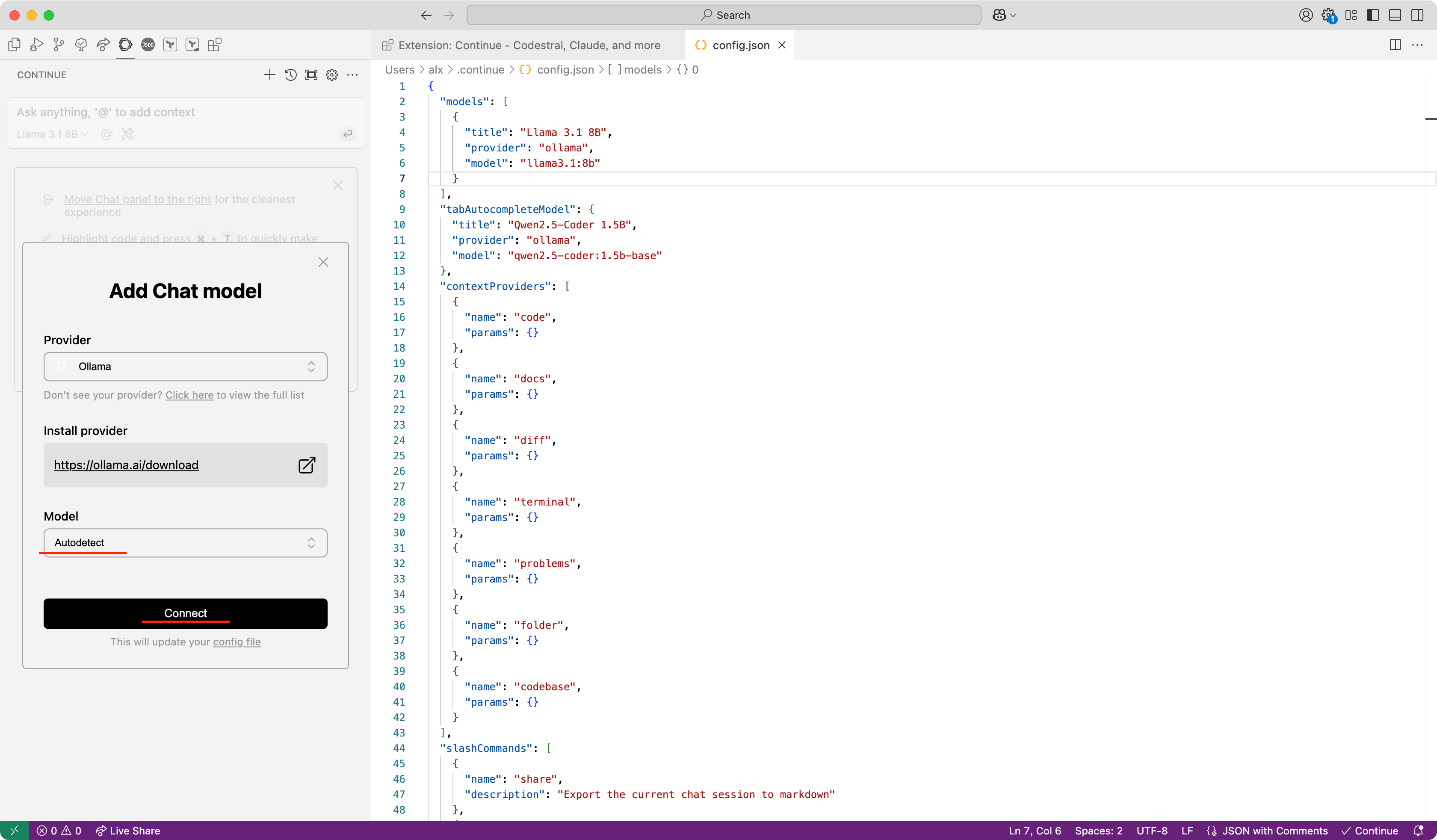
Detected models shown here:
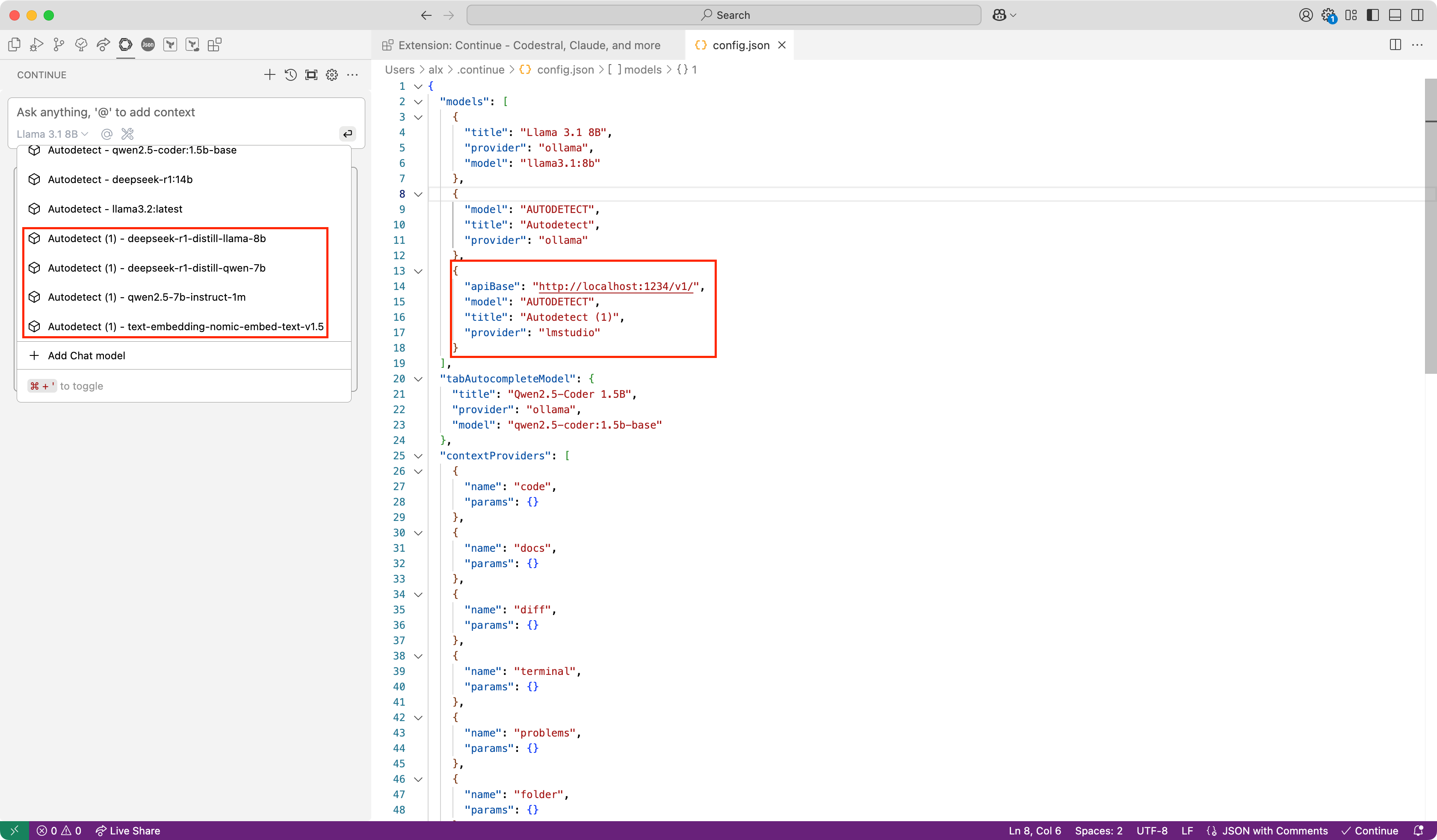
Example for LM Studio:
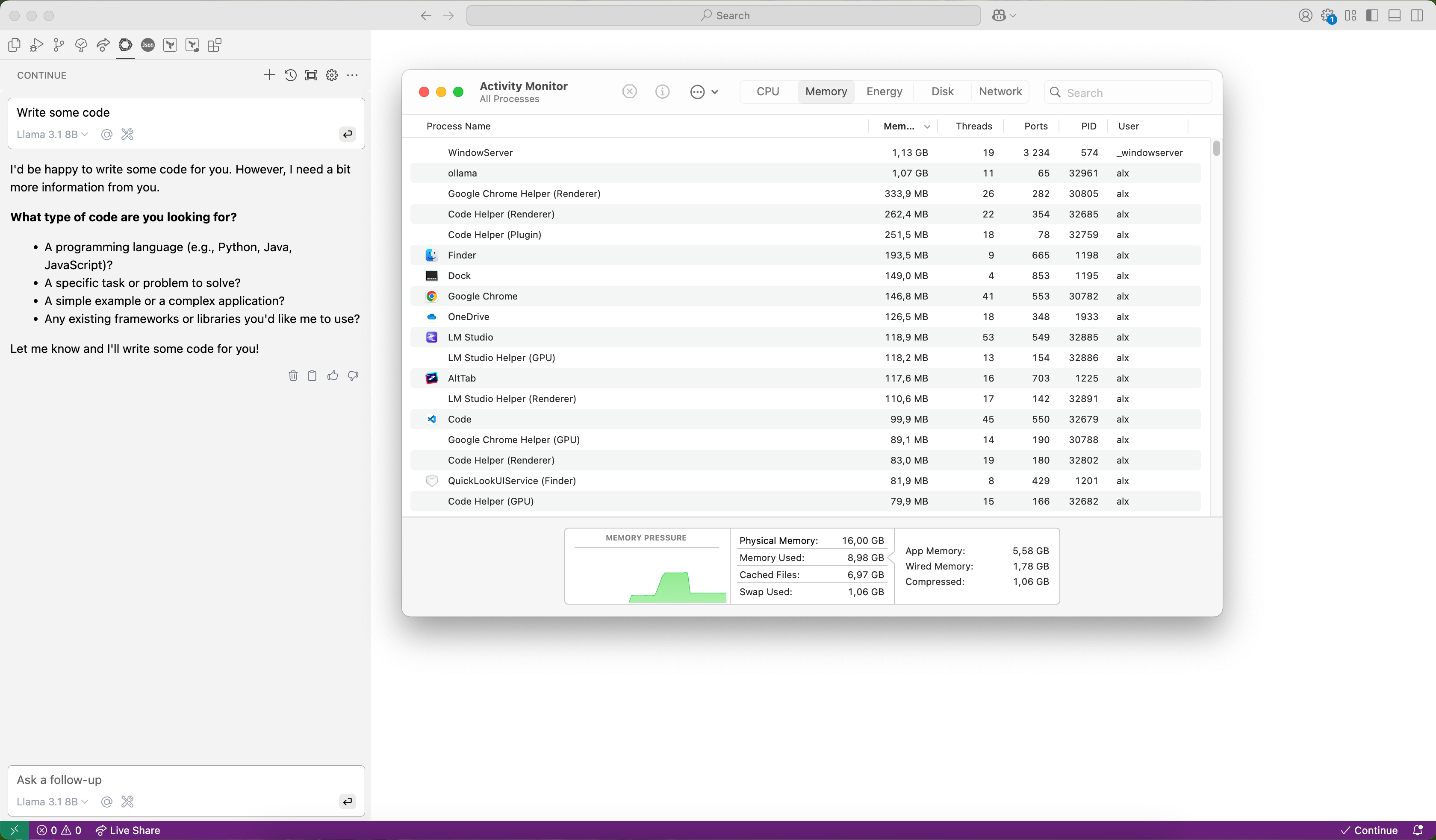
Usage example. You can how used memory when answer is generated: