UDI Wizard
Application Discovery Error
Edit via UDI Wizard Read Configuration File in Application Discovery check %OSDDataSourceDrive%\%OSDDataSourceDirectory%\AppDiscoveryresult.xml.app to %DeployRoot%\Scripts\UDIWizard_Config.xml.app
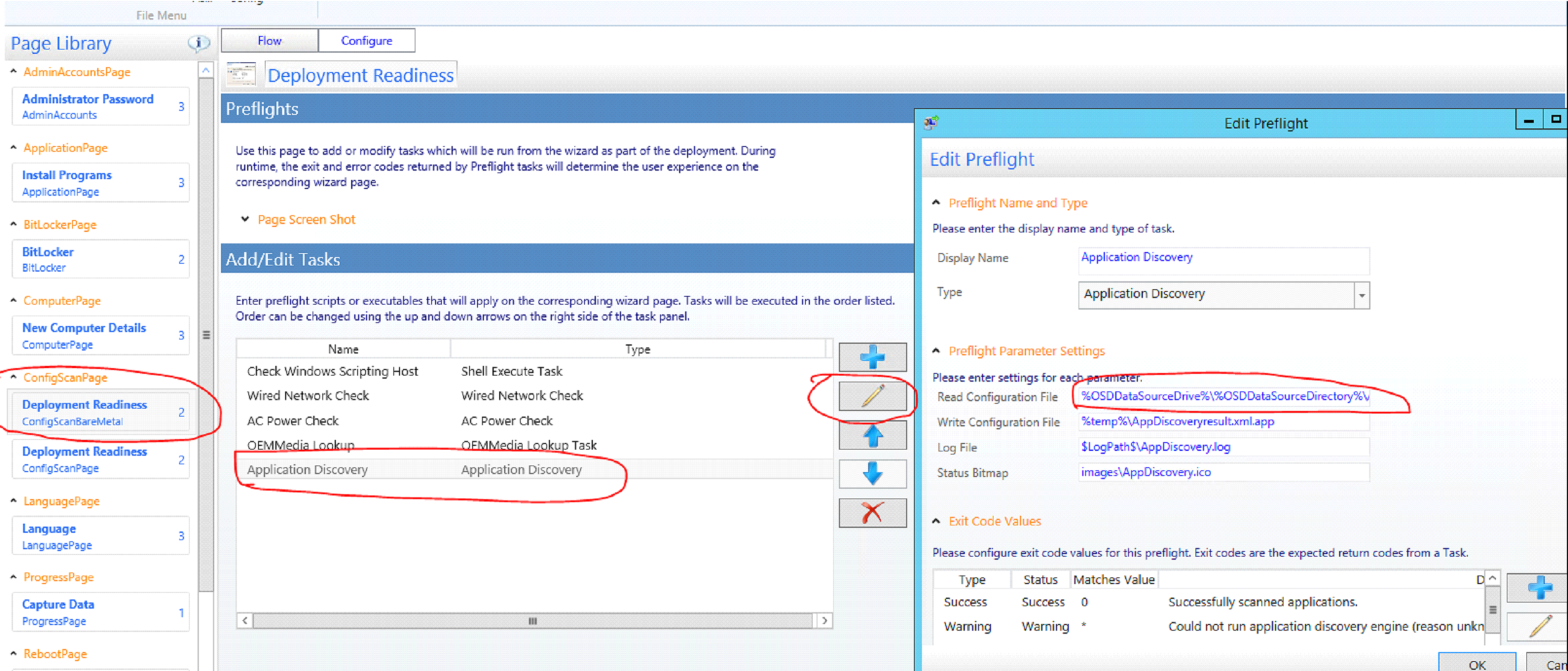
Wizard
Task Sequences created with MDT should opened only with installed MDT Toolkit.
UI Designer PXE (Run as Administrator) C:\Program Files\Microsoft Deployment Toolkit\Bin\UDIDesigner.exe. Edit file %DeployRoot%\Scripts\UDIWizard_Config.xml
Software Settings: %temp%\AppDiscoveryresult.xml.app APPLICATION PACKAGES
Site Settings: servername DSPA OSD UDI
Preview wizard
"C:\Program Files\Microsoft Deployment Toolkit\Templates\Distribution\Tools\x64\OSDSetupWizard.exe" /preview /xml:"%DeployRoot%\Scripts\UDIWizard_Config.xml"
Wizard Config
Manage variables in Task Sequence. In UDIWizard_Config.xml variables are specified, which are filled in at the beginning:
- OSDDomainName_1
- OSDDomainOUName_1
- OSDJoinAccount_1
- OSDJoinPassword_1
This variables are created as a step (Add/General/Set TS Variables) and specified in Task Sequence, so that when they are changed, it is not necessary to edit UDIWizard_Config.xml.
In UDIWizard they are specified as %OSDDomainName_1%.
For specifying multiple OS in xml, several OSDImageName (variable) with names are specified. In Task Sequence, each step with an image is added a TS Variable condition.
Add Image to Wizard
OS images must be added to the display list in UDI Wizard. VolumePage - Image Combo Box
- Image Name must match the OSDImageName variable set in the Task Sequence at the Install stage for each image. In each step of the image installation in the Task Sequence, a variable check is implemented. Thus, the selected image will be installed.
Index - the number of the version in the image (Home, Edu, Pro etc.)
After making changes to UDIWizard_Config.xml and saving, you need to Update Distribution Points for the MDT ToolKit package (Console - Packages - MDT).